Preview files without leaving the thread
Open Files in the thread sidebar and select a file. Markdown opens as a formatted document; supported text and images open in the file pane. Use the single-tab quick-preview mode to browse several files in the same tab, or switch to multiple tabs to keep them open.
For editable text files, choose Edit to work on the source, then Preview to read it again. Large files may have a limited, read-only preview; unsupported formats show a no-preview message.
Ask about a passage in a document
Select text in a rendered Markdown preview and choose talk to agent. Write your question or requested change in the dialog, then send it to the selected live session.
Haicue includes the file reference and selected passage with your message, so you can ask “Does this still match the implementation?” without copying the passage into a separate prompt.
Find text inside an open file
Use the search control in the file pane to find text in the open document. This is useful when checking a long note, configuration file, or source file. Use the sidebar’s file search when you need to find a different file.
Insert a file, skill, or command
Type : in the prompt to search for workspace files and directories. Type / to see available skills and agent commands. Suggestions depend on the selected agent and the available workspace.
Use the arrow keys to move through suggestions, then Tab or Enter to insert one. Escape dismisses the list. Selecting a suggestion adds it to your draft; it does not send the prompt.
Improve a prompt before sending
Write a draft, then press Command on its own while the input is focused to reveal Improve. Select Improve to have Haicue refine the draft using the session and thread context. This gesture is shown here on macOS.
The original is saved in your session’s stashes. The improved prompt returns to the input for you to review and edit before sending. While improvement is running, the same control lets you cancel.

Follow work through activity chips
During a turn, chips such as Ran, Explored, and Edit show the agent’s recorded actions. Hover over a chip, or focus it with the keyboard, to see the available details. Depending on the action, this can include a command, output, a file path, or a change.
Use these details to follow a particular step without leaving the conversation. For searching recorded activity across sessions and threads, open Track.
Paste images and attach files
Paste an image into the input, drag in a file, or select the + button to choose files. Attachments appear beside the draft; image attachments have a preview. Remove an attachment with its × button before sending if it is no longer needed.
Add a sentence explaining what the agent should do with the attachment—for example, “Compare this screenshot with the page and fix the spacing.” Large pasted text can be staged as a text attachment instead of filling the input.

Stash a draft and return to it
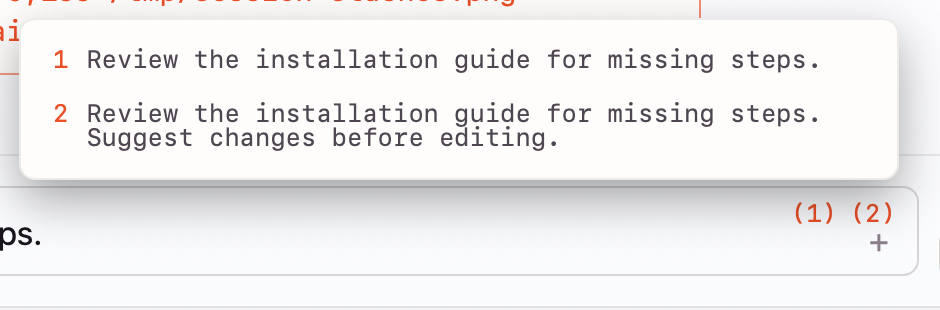
With a draft in the input, use the Stash input shortcut—Command-S by default on macOS—to save it and clear the input. Each session keeps up to three stashes, with the newest first.
Hover over the numbered stash controls to preview them, then select one to restore it into the input. Restoring removes it from the stash list and replaces the current draft, so stash that draft first if you want to keep both. With an empty input, the stash shortcut restores the most recent stash.
These are prompt drafts, separate from Git stashes. The shortcut can be changed in Settings.